
Smart Ways to Reduce Screen Glare and Eye Strain
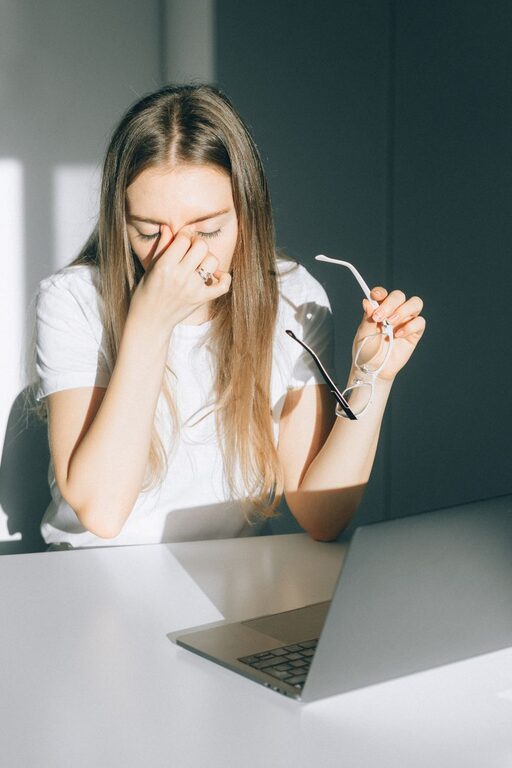
Why Screen Glare Happens
Screen glare occurs when light from windows, lamps, or overhead fixtures reflects off a display. These reflections can make text harder to read and may encourage you to squint, lean forward, or adjust your posture.
Even without visible reflections, a screen can feel uncomfortable when its brightness is much higher or lower than the surrounding room. Long periods of focusing at one distance can also leave your eyes feeling tired. The good news is that small changes to your screen, lighting, and habits can make a noticeable difference.
Improve the Lighting Around Your Screen
The best place to start is your room lighting. A screen should not be the brightest object in your field of view, but it should also not look like a bright window in a dark room.
Position your desk carefully
Whenever possible, place your monitor so windows are to the side rather than directly in front of or behind the screen. A window behind you can create reflections, while a window directly in front of you may produce strong contrast and make the display harder to see.
If moving the desk is not practical, try these options:
- Close blinds or curtains during the brightest parts of the day.
- Use a sheer curtain to soften direct sunlight.
- Reposition the screen slightly to change the angle of reflections.
- Use a desk lamp instead of relying only on bright overhead lighting.
Choose softer, balanced lighting
A small lamp placed beside the screen can provide gentle background light. Aim the lamp toward the desk or a nearby wall rather than directly at the display. Avoid placing a bright light behind the monitor where it may shine into your eyes.
At night, avoid working with only the screen illuminated in an otherwise dark room. A low, comfortable room light can reduce the difference between the display and its surroundings.
Adjust Your Display Settings
Many screens are set brighter than necessary when first installed. Lowering the brightness can reduce the feeling that the screen is shining into your eyes. Adjust it until white areas look reasonably similar to the surrounding room rather than glowing noticeably brighter.
Use automatic brightness when helpful
Some computers, tablets, and phones can adjust brightness based on room conditions. Automatic settings are not perfect, but they can be useful when moving between bright and dim locations.
If automatic adjustment feels distracting, turn it off and set the brightness manually whenever the lighting changes significantly.
Increase text size and contrast
Small text can make you work harder to read, especially on high-resolution displays. Increase the font size in your browser, operating system, or favorite apps. Clear contrast between text and its background can also improve readability.
Avoid unusual color combinations that make letters appear blurry. Standard dark text on a light background works well for many people, while a dark-mode setting may be more comfortable in low-light environments. Choose the option that feels easiest to read without forcing your eyes to focus.
Reduce reflections
If your monitor has a glossy surface, reflections may remain even after you adjust the lighting. A matte screen protector can help scatter reflected light. Before buying one, check that it matches your device size and does not reduce image clarity more than you prefer.
Keep the screen clean as well. Dust, fingerprints, and smudges can soften text and increase the need to squint.
Set the Right Screen Position
Screen placement affects both visual comfort and posture. Position the monitor directly in front of you so you do not need to turn your head for long periods.
As a general starting point:
- Place the top of the screen at or slightly below eye level.
- Keep the display about an arm’s length away.
- Angle the monitor slightly upward or downward to reduce reflections.
- Keep frequently used documents near the screen to limit repeated refocusing.
If you use two monitors, place the primary display directly in front of you. Position a secondary screen beside it and turn your chair slightly when using it, rather than repeatedly twisting your neck.
For laptops, raising the screen to a comfortable height can improve posture. If you do this for extended work, use a separate keyboard and mouse so your hands and shoulders remain in a natural position.
Build Better Screen Habits
Even a well-adjusted workspace benefits from regular breaks. Long, uninterrupted periods of close-up focus can make digital work feel more demanding.
Try the 20-20-20 approach
A simple reminder is to look away from the screen about every 20 minutes and focus on something roughly 20 feet away for at least 20 seconds. The goal is to change your viewing distance and give your eyes a brief pause.
You can make this easier by:
- Setting a quiet timer or calendar reminder.
- Looking out a window during short breaks.
- Standing up to refill water or organize your workspace.
- Using software that prompts regular pauses.
The exact timing is less important than avoiding hours of continuous screen focus.
Remember to blink
People often blink less when concentrating on text, video, or detailed work. Make a point of blinking naturally, especially during long reading sessions. Short pauses can also help you notice whether the screen feels too bright, small, or reflective.
Switch tasks when possible
Varying your activities can reduce the time spent staring at one display. For example, listen to an audio meeting instead of watching the screen when visual information is not needed. Print a long document for review when appropriate, or use a voice feature to read text aloud.
Reduce Glare on Phones and Tablets
Mobile devices are often used in changing conditions, such as bright outdoor areas, dim bedrooms, or vehicles. Adjust the brightness to match the setting instead of keeping it at maximum.
When reading outside, shade the screen with your body or use a case with a built-in cover. At night, enable a warmer display setting or reduce the screen’s brightness. Keep the device at a comfortable reading distance rather than holding it very close to your face.
It can also help to increase text size and use reader modes on websites. These features reduce clutter and make long pages easier to scan.
Make Your Workspace More Comfortable
Glare and visual fatigue are often connected with an uncomfortable setup. Keep your chair, desk, and screen arranged so you can sit upright without leaning toward the display.
Organize cables and frequently used items within easy reach. A clean workspace makes it easier to keep the monitor in the right position and reduces the temptation to work from awkward angles.
Take a moment at the start of each work session to check:
- Are there reflections on the screen?
- Is the display brighter than the room?
- Can you read comfortably without leaning forward?
- Are the text size and contrast easy to see?
- Have you scheduled a short break?
Pay Attention to Ongoing Discomfort
Occasional tiredness after extended screen use can be a sign that your setup or routine needs adjustment. If discomfort continues despite reasonable changes, or if you notice persistent changes in your vision, consider discussing the issue with a qualified eye care professional.
The most effective approach is usually a combination of small improvements: soften nearby lighting, reduce reflections, adjust screen settings, position the display well, and take regular viewing breaks. Together, these habits can make everyday screen use more comfortable without requiring major changes to your workspace.